How to check used iPhone before buying starts with one rule: do not pay until the device has been unlocked, inspected, erased, and activated in front of you. A clean exterior, original box, or high battery percentage does not prove that an iPhone is ready for a new owner.
A proper inspection should confirm that the seller controls the device, its specifications match the listing, and its hardware works correctly. Allow at least 20 minutes for testing. Bring a compatible active SIM. If the model is eSIM-only, confirm with your carrier beforehand how mobile service can be tested.
Used iPhone Checklist: Eight Checks to Complete Before Payment
The safest approach to checking a used iPhone before buying is to follow a consistent sequence. Verify the account status and device identity first, then examine the repair history, battery, display, cameras, and connectivity.
| Check | Acceptable result | Walk-away warning |
| Activation Lock | The device does not request the previous owner’s Apple Account after erasure. | “iPhone Locked to Owner” appears. |
| IMEI and specifications | The identifiers and specifications match the phone, listing, and paperwork. | Missing or inconsistent identifiers |
| Carrier Lock | “No SIM restrictions” appears if the device was advertised as unlocked | An undisclosed carrier restriction |
| Parts history | The repair history matches the seller’s explanation | Undisclosed, unknown, or Unverified parts |
| Battery | Battery capacity and system messages are acceptable for the price | Degraded health, swelling, or sudden shutdowns |
| Display and touch | The image is even, and the entire touchscreen responds correctly | Lines, burn-in, dead zones or ghost touches |
| Cameras and biometrics | Every available camera and biometric feature works | Failed enrolment, focus or stabilisation |
| Connectivity | Calls, Wi-Fi, Bluetooth and mobile data work reliably | No service or unstable connections |
Review the Listing and Seller Before Inspecting the iPhone
Before meeting the seller, confirm the model, storage capacity, battery health, and repair history.

If the device is refurbished, use Shozon’s guide to refurbished electronics in the UAE to assess its testing, warranty, and condition grade.
Confirm that the seller will permit functional testing and erase the iPhone before payment. Ask these questions in writing:
- Are you the owner, and can you remove the iPhone from your Apple Account?
- Have the battery, display, cameras, back glass, or logic board been replaced?
- Do Face ID or Touch ID work correctly?
- Is the device unlocked for compatible mobile networks?
- Has the iPhone sustained liquid damage or a major impact?
- Is an original invoice, repair receipt, warranty, or return period available?
A suspiciously low price may indicate undisclosed repairs, carrier restrictions, or an ownership problem. Pause the transaction if the seller refuses to provide essential details, prevents proper testing, or pressures you to pay a deposit.
How to Check Used iPhone Before Buying: Verify Activation Lock
An iPhone activation lock check confirms whether the device remains linked to the previous owner’s Apple Account. After testing the hardware, ask the seller to select Settings > General > Transfer or Reset iPhone > Erase All Content and Settings and enter the required credentials.
After the iPhone restarts:
- Begin the setup process.
- Connect the device to Wi-Fi or mobile service.
- Confirm that it does not request the previous owner’s Apple Account details.
Do not complete the purchase if iPhone Locked to Owner appears or the former owner’s credentials are requested. Apple’s official Activation Lock guidance advises buyers not to take ownership until the iPhone has been erased and removed from the previous owner’s account.
Never accept a promise to remove the account after payment. The seller must resolve Activation Lock before the transaction is completed.
Check iPhone IMEI Before Buying: Verify Identity and Carrier Lock
Before buying, confirm that Activation Lock has been removed, then verify the device’s identity using its IMEI, serial number, model, and storage capacity.
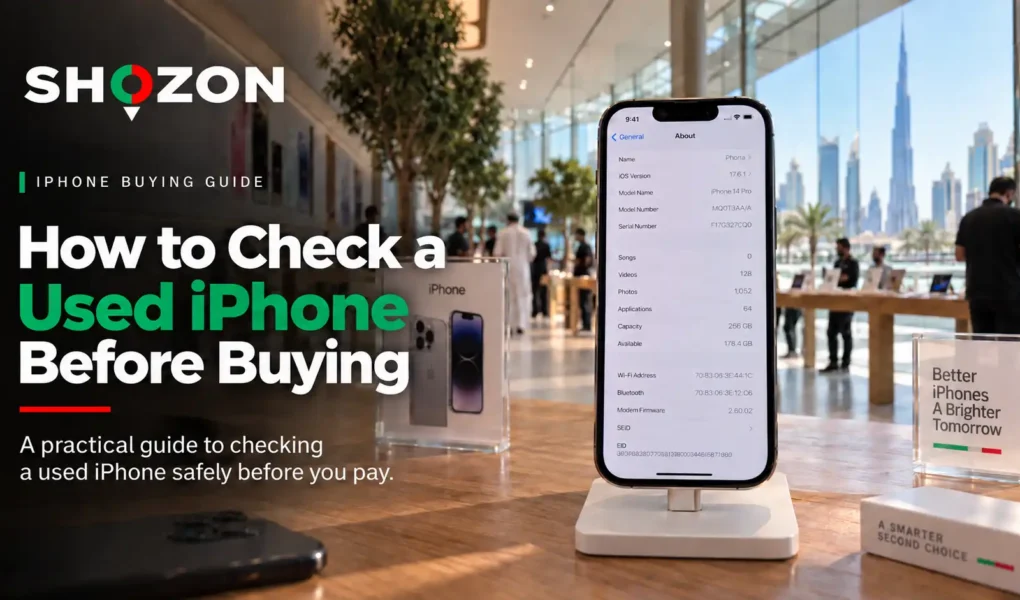
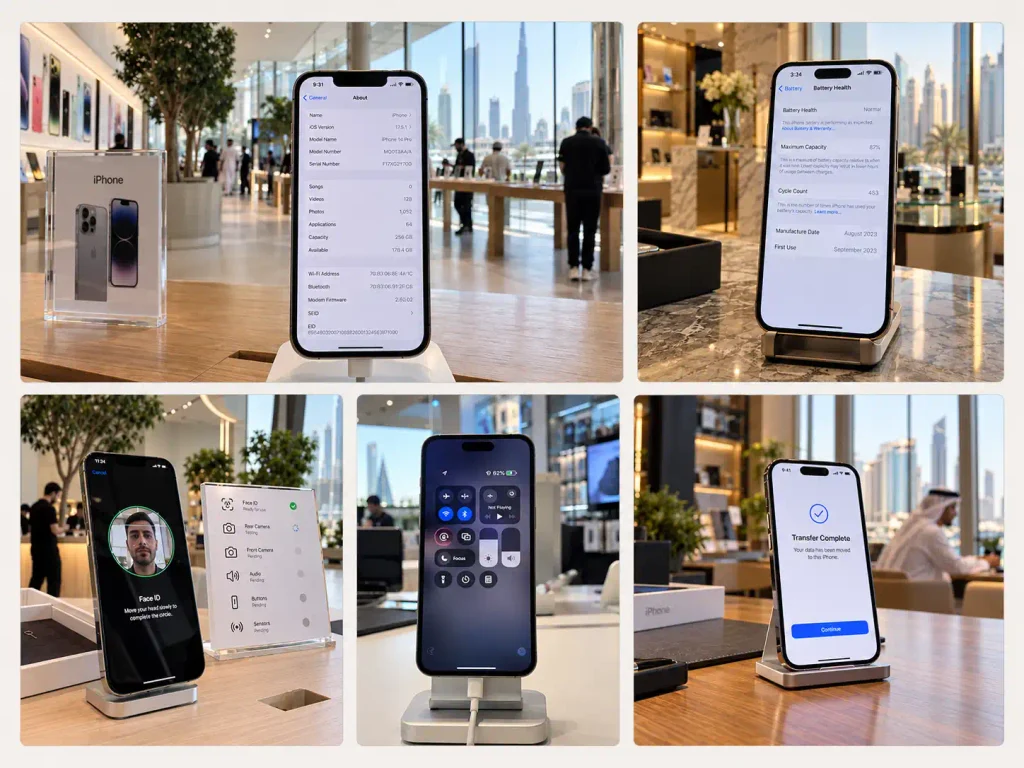
Open Settings > General > About and review the model name, model number, serial number, IMEI, storage capacity, iOS version and Carrier Lock status.
Apple’s IMEI and serial number guide confirms that the serial number, EID, IMEI/MEID and ICCID can also be accessed through the Info button on the Hello screen before setup. Storage capacity, iOS version and Carrier Lock status should be checked in Settings after setup.
- Model name and model number
- Serial number
- IMEI, including both IMEIs when displayed
- Storage capacity
- iOS version
- Carrier Lock status
Follow these steps to check an iPhone’s IMEI before buying:
- Compare the IMEI in Settings with the identifier displayed after the iPhone is erased.
- Match the model and storage capacity with the listing, invoice, and box, if available.
- Ask your mobile carrier whether the IMEI is blocked or restricted on its network.
- Insert your SIM or configure your eSIM, then test calls and mobile data.
- Add the IMEI to the receipt if you complete the purchase.
A matching box or IMEI result does not prove ownership or confirm that the iPhone was never reported lost or stolen. Also verify Activation Lock, seller documents, and network access.
Check iPhone Carrier Lock Before Buying
Open Settings > General > About and locate Carrier Lock. If the iPhone was advertised as unlocked, the field should display No SIM restrictions, as confirmed in Apple’s pre-owned iPhone inspection guide.
If a carrier name or restriction appears, confirm that the device will work with your intended mobile network before buying. Do not rely on the seller’s verbal assurance when the status displayed on the iPhone indicates otherwise.
How to Know If iPhone Parts Are Original or Replaced
To check whether the iPhone has a recorded repair history, open Settings > General > About.
| Label | What it means |
| Genuine | The repair was completed using genuine Apple parts and processes. |
| Used | The part was previously used or installed in another iPhone. |
| Unknown | The part may be non-genuine, modified, unverified, incorrectly installed, or not functioning as expected. |
| Unverified | A replaced logic board could not be verified, which may affect features such as Apple Pay. |
| Finish Repair | The repair or calibration process has not been completed. |
Apple’s Parts and Service History documentation explains that the components displayed depend on the iPhone model. Newer models can report more parts than older devices, and only the most recent service for a component may appear.
Check iPhone Battery Health Before Buying: Capacity, Warnings and Performance
Battery condition matters because an ageing battery affects runtime, performance and the true cost of the device.
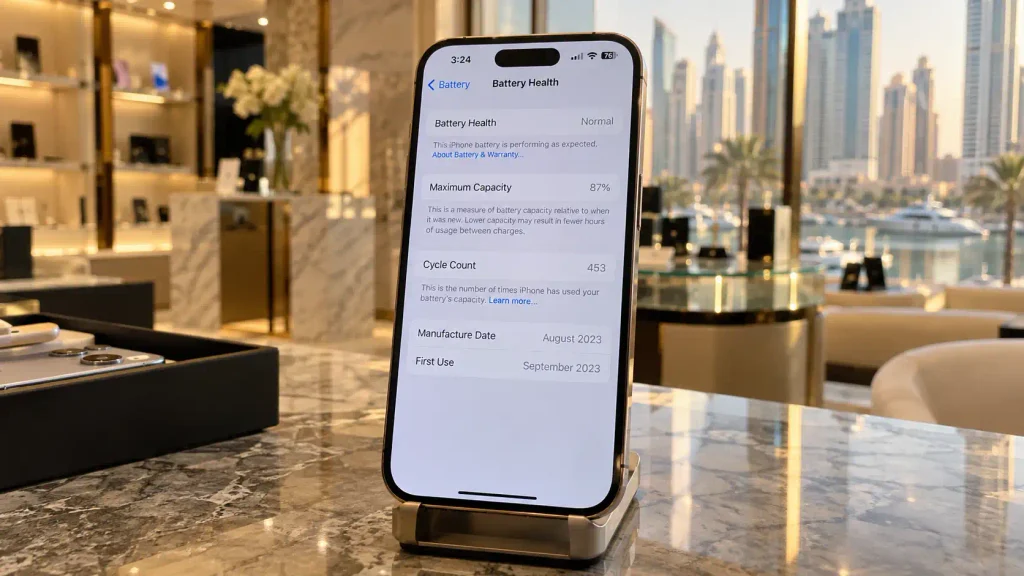
Open Settings > Battery > Battery Health or Battery Health & Charging, depending on the iOS version.
1. Interpret Maximum Capacity and Battery Messages
Review Maximum Capacity, Peak Performance Capability, and any battery warnings. Maximum Capacity estimates how much charge the battery can hold compared with when it was new. Apple’s battery and performance guidance explains how chemical ageing can reduce battery capacity and peak power.
Use this framework when you check iPhone battery health before buying:
| Battery result | Buying interpretation |
| 90% to 100% | A strong result, but check the repair history if the percentage appears unusually high for the iPhone’s age. |
| 85% to 89% | Usually practical for daily use, although the price should reflect existing wear |
| 80% to 84% | Expect shorter runtime and budget for a future battery replacement. |
| Below 80% or degraded warning | Consider buying only if the price covers the cost of prompt battery service. |
| Battery health cannot be verified. | Treat the displayed percentage cautiously and investigate whether the battery was replaced. |
These ranges are buying guidelines, not official pass marks. Consider the phone’s age, performance, repair history, and price, as Apple warns that battery health information may be inaccurate when the installed battery cannot be verified.
2. Test Battery Performance Before You Pay
Use the iPhone for several minutes at medium-to-high brightness, record a video, and switch between apps while monitoring the battery percentage.
Excessive heat during light use, sudden battery drops, unexpected restarts, or shutdowns may indicate battery deterioration.
Do not buy the device if the display is lifting from the frame or the battery appears swollen, as these are potential safety issues rather than minor faults that justify price negotiation.
Inspect the iPhone Body, Display, and Signs of Liquid Damage
A complete used iPhone inspection requires more than a check for surface scratches.
1. Check the Frame, Glass, and Charging Port
Inspect the iPhone from different angles and look for:
- A display lifting away from the enclosure
- A bent frame or deep corner damage
- Cracks in the rear glass or camera lenses
- Corrosion in the charging port or a loose cable connection
- Fogging behind a camera lens
- Uneven gaps that may indicate poor reassembly
Damaged screws may indicate prior repairs, while a bent frame, lifted display, or cracked camera lens can signal costly structural damage.
2. Check the Liquid Contact Indicator
Some iPhone models have an externally visible Liquid Contact Indicator, although its location depends on the model and regional configuration. Apple’s Liquid Contact Indicator guide explains that the indicator is normally white or silver and turns fully red after contact with water or a water-based liquid.
Check the charging port and SIM tray for corrosion. Fogging behind the camera lenses, distorted audio, and inconsistent charging may also indicate previous liquid exposure.
3. Test the Display and Touch Response
To inspect a used iPhone’s display properly, view solid white, black, red, green, and blue images at different brightness levels.
Apple notes that a non-genuine iPhone display may cause Multi-Touch errors, incorrect colours, uneven brightness, reduced sensor performance, or problems with True Tone. Look for:
- OLED burn-in
- Uneven colour or discolouration
- Bright or dark pixels
- Horizontal or vertical lines
- Flickering at low brightness
- Dark areas or inconsistent backlighting
- A display separating from the frame
Drag an app icon across the entire screen, draw continuous lines from edge to edge in Notes, and type across the keyboard. Dead zones, interrupted lines, or ghost touches may indicate a damaged or poorly installed display.
Test Face ID, Cameras, Audio, and Physical Controls
Functional testing is central to how to check used iPhone before buying. Each component should complete a real task without warnings, delays, or repeated failures.
1. Test Face ID or Touch ID
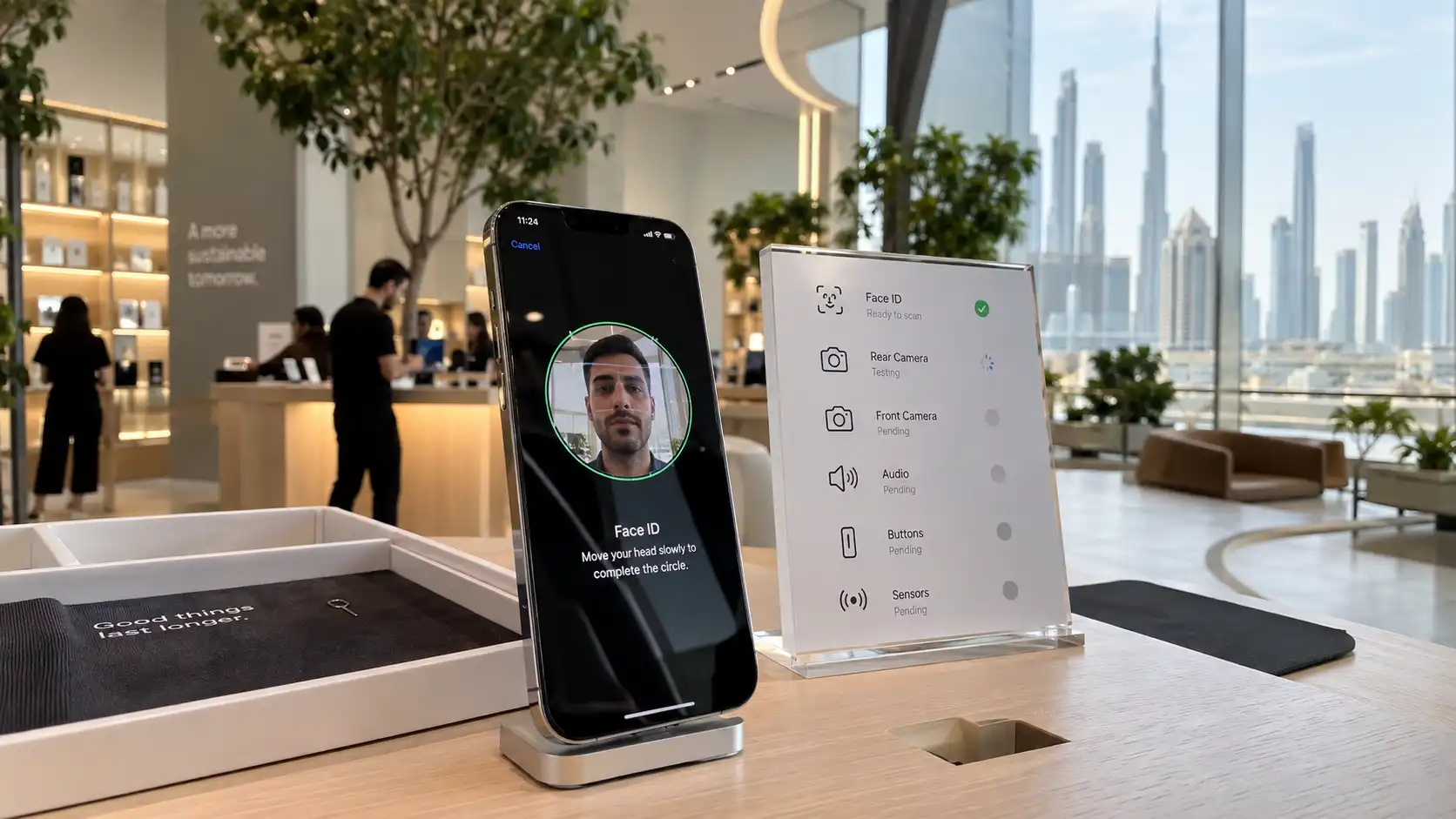
Ask the seller to remove existing biometric data, then temporarily enrol your face or fingerprint. Lock and unlock the iPhone several times.
Failed enrolment or inconsistent recognition may indicate sensor damage, an incomplete repair, or a problem with a related component. Do not rely on the seller demonstrating an existing Face ID or Touch ID profile, as you need to confirm that new biometric data can be registered.
2. Test Every Camera and the Flash
Test every available front and rear camera rather than checking only the default lens. Photograph nearby and distant subjects in bright and dim lighting. Tap different areas of the screen to test focus, then record a video while moving slowly.
Check for:
- Dust spots, haze, or fogging
- Shaking, clicking, or unstable stabilisation
- Repeated focus hunting
- A black screen or unavailable camera lens
- Flash or Portrait mode failures
- Distorted or missing audio in recorded videos
Review the photographs and videos at full size. A problem may be difficult to notice while using the small camera preview.
3. Test the Speakers and Microphones
Play a ringtone at several volume levels and listen for weak, distorted, or crackling audio. Record a Voice Memo and play it back to check whether your voice sounds clear.
Make a standard call to test the earpiece and microphone, then repeat the call using speakerphone. Testing both modes helps identify audio problems that a single recording may not reveal.
4. Test the Buttons and Sensors
Press the volume buttons, side button, and Home button where fitted. Test the Ring/Silent switch or Action button and confirm that each control responds consistently.
During a call, cover the area near the top of the display. The proximity sensor should turn the screen off. Also test:
- Vibration and haptic feedback
- Automatic screen rotation
- Automatic brightness
- Location accuracy in Maps
Buttons should not stick, feel loose, or require excessive pressure.
Test Charging, Wi-Fi, Bluetooth, and Mobile Service
Connect a reliable cable and confirm that charging remains stable. If supported, also test wireless charging, including MagSafe.
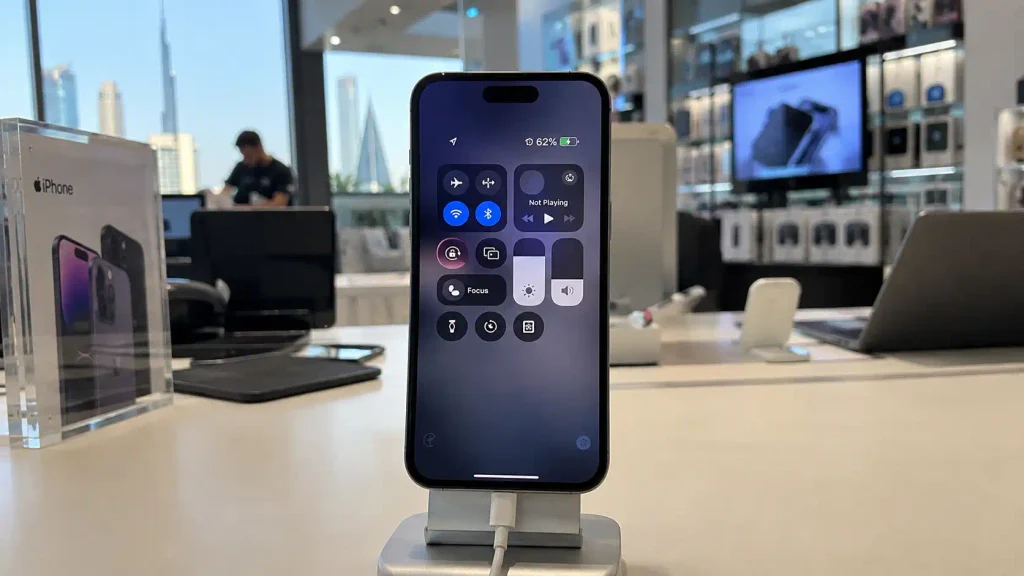
Complete these connectivity checks:
- Connect to Wi-Fi and load several pages.
- Pair the iPhone with a Bluetooth accessory.
- Insert your SIM or configure your eSIM.
- Make and receive a phone call.
- Test mobile data and messaging.
- Confirm that location services work in Maps.
Do not rely only on the Wi-Fi icon, signal bars, or Bluetooth menu. A real call, data session, and connected accessory provide stronger evidence. Intermittent service may indicate antenna damage, network incompatibility, carrier restrictions, or a logic-board fault.
Confirm Storage, Software Support and Potential Repair Costs
Open Settings > General > About and compare the listed capacity with the advertisement. Available storage will be lower because iOS and system files occupy space, but the device’s total capacity must match what the seller advertised.
Confirm that the model can run the iOS version required by your essential apps and still receives the security updates you need.
Open Settings, Safari, Maps, and Camera, then switch between them. Repeated restarts, persistent warnings, unusual heat, or severe lag may indicate a software or hardware problem.
Calculate the True Cost Before Negotiating
The asking price does not represent the full cost if the iPhone needs immediate repairs or replacement accessories. Compare the total with current mobile phones for sale in the UAE on Shozon before deciding whether the used iPhone offers better value.
| Possible cost | What to assess |
| Battery replacement | Battery health, service warnings and actual runtime |
| Display repair | Cracks, burn-in, touch response and parts history |
| Camera or Face ID repair | Focus, stabilisation and biometric enrolment |
| Charging repair | Port condition and wired or wireless charging performance |
| Accessories | Missing or damaged cable, charger and case |
| Limited storage | Whether the capacity meets your long-term needs |
Do not treat Activation Lock, mismatched identifiers, battery swelling or serious liquid damage as bargaining points.
Complete the Transfer Safely Before Paying
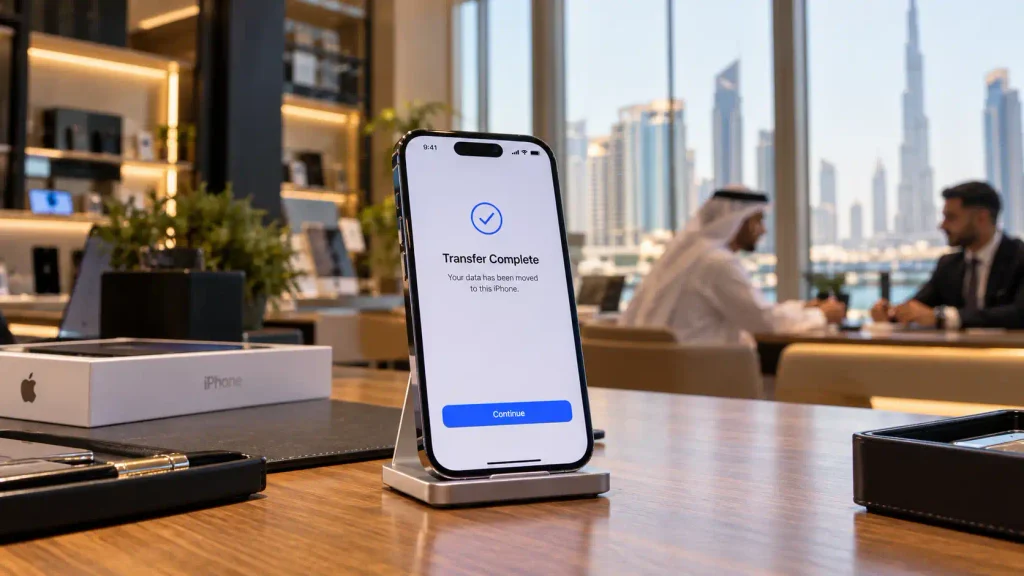
The final step is to document the sale. Keep the listing and messages, and obtain a receipt stating the price, device details, IMEI, seller’s name, and disclosed faults.
Immediately before payment:
- Confirm that the seller has not switched the inspected iPhone.
- Record all included accessories and known defects.
- Ask the seller to erase the iPhone and remove it from their Apple Account.
- Begin setup and confirm that no previous owner’s credentials are requested.
- Activate your SIM or eSIM where practical.
- Pay only after the iPhone reaches a usable setup stage.
Meet in a public place and follow Shozon’s buying and selling guide before paying. Walk away if the seller refuses to erase the iPhone or remove their account.
When Should You Walk Away?
End the purchase if Activation Lock remains enabled, the seller cannot erase the phone, an IMEI is blocked by your carrier, or identifiers do not match. Also reject swelling, severe overheating, liquid corrosion, repeated restarts, undisclosed part warnings, or biometric enrolment failure.
Cosmetic damage and a worn battery may be negotiable when fully disclosed. Ownership and activation problems are different. A discount cannot make a locked or questionable device safe to buy.
Frequently Asked Questions
How to check a used iPhone before buying?
Verify Activation Lock, match the IMEI and specifications, review battery health and repair history, then test the display, cameras, biometrics, charging and connectivity.
How do I check if my iPhone was used before?
There is no single ownership-history setting, but battery wear, Parts and Service History, purchase documents, and existing Apple Account information can provide evidence.
What should I check before buying an iPhone?
Check ownership, Activation Lock, IMEI, carrier status, battery health, replaced parts, physical damage, and every essential hardware function.
How to test a second-hand iPhone?
Use your SIM, make a call, test Wi-Fi and Bluetooth, enrol Face ID or Touch ID, examine every camera, and check the entire touchscreen.
How to tell if a second-hand iPhone is real?
Confirm that it runs genuine iOS, compare its identifiers in Settings with the device and paperwork, and verify that its specifications match the advertised model.
What to check for 2nd-hand iPhones?
Inspect the account status, identifiers, battery, parts history, display, cameras, microphones, speakers, buttons, charging port, and mobile connectivity.
What are red flags when buying a used iPhone?
Activation Lock, mismatched identifiers, battery swelling, liquid corrosion, failed Face ID, undisclosed repairs, and refusal to erase or test the device are major warnings.
How can I check my iPhone’s IMEI?
Open Settings > General > About and locate the IMEI. If the iPhone has been erased, tap the Info button on the Hello screen before setup.
What to check before buying an old iPhone?
Confirm its remaining software support, app compatibility, battery condition, storage capacity, repair needs, and total cost compared with a newer model.
What is ghost touch in an iPhone?
Ghost touch occurs when the screen registers taps or movements without user input, often because of display damage, contamination, or a faulty replacement screen.
Sources
- If You Want to Buy a Pre-Owned iPhone
- Activation Lock for iPhone and iPad
- Find the Serial Number or IMEI on Your iPhone
- iPhone Parts and Service History
- About Genuine iPhone Batteries
- iPhone Battery and Performance
- Water and Other Liquid Damage to iPhone
- About Genuine iPhone Displays